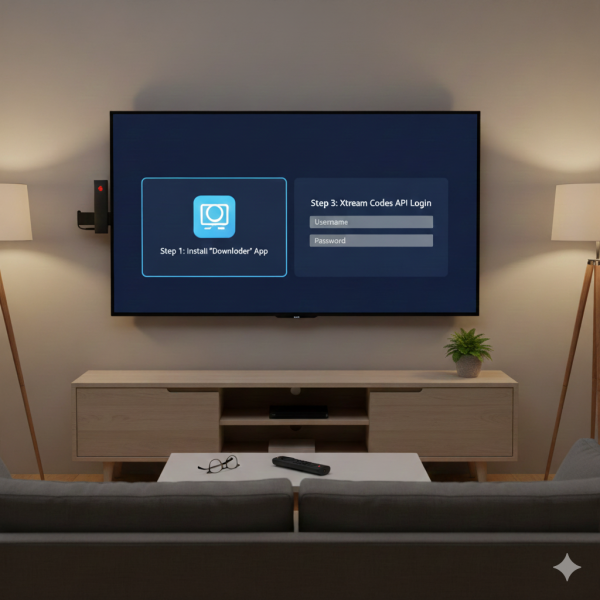
Streaming in 4K requires more than just a fast broadband connection — it requires the right IPTV player. In 2026, TiviMate has firmly established itself as the number one IPTV player for Amazon Firestick users in the UK. With its premium EPG TV guide, multi-playlist support, catch-up TV integration, and a highly customisable interface that feels like a high-end cable box, TiviMate is in a league of its own.
In this guide, we will walk you through the complete TiviMate Firestick setup process from scratch — from enabling developer options to logging in with your UltraCast IPTV UK credentials and getting your EPG TV guide working. Whether you are brand new to IPTV or switching from another player, this guide covers everything you need.
You need an active IPTV subscription to use TiviMate. Get a free 24-hour UltraCast IPTV trial — no payment card required — before following this guide.
Why TiviMate is the Best IPTV Player for Firestick in 2026
Before we dive into the setup, it is worth understanding exactly why TiviMate is the preferred choice over other IPTV players like IPTV Smarters Pro, GSE Smart IPTV, and Smart IPTV for Firestick users in 2026.
| Feature | TiviMate | IPTV Smarters | GSE Smart IPTV |
|---|---|---|---|
| Full EPG TV Guide | ✓ Premium | ✓ Basic | ✓ Basic |
| 4K Ultra HD Playback | ✓ Yes | ✓ Yes | ✓ Yes |
| Multiple Playlists | ✓ Yes | ✗ No | ✓ Yes |
| Catch-Up TV | ✓ Yes | ✓ Yes | ✗ No |
| Favourites & Groups | ✓ Advanced | ✓ Basic | ✓ Basic |
| Auto-Update Playlist | ✓ Yes | ✗ No | ✗ No |
| Recording Feature | ✓ Yes | ✗ No | ✗ No |
| UI Quality | ✓ Excellent | Good | Average |
| Firestick Optimised | ✓ Best | ✓ Good | Average |
TiviMate's advanced EPG integration, automatic playlist updates, and recording capabilities make it the clear winner for anyone who wants a premium TV experience on their Firestick. The interface is clean, fast, and fully remote-control friendly — no touchscreen needed.
What You Need Before You Start
- An Amazon Firestick (any model including Fire TV Stick 4K Max 2026)
- A Wi-Fi connection with at least 25 Mbps for reliable 4K streaming
- An active IPTV subscription — UltraCast IPTV UK starts from just £12/month
- Your UltraCast login credentials — Server URL, Username, and Password (sent by WhatsApp after purchase)
- Approximately 10 minutes to complete the full setup
TiviMate has a free version, but the TiviMate Premium version (approximately £3.99/year) is required for features like the full EPG TV guide, multiple playlists, catch-up TV, and recording. We strongly recommend purchasing Premium for the best experience.
Step 1 — Enable Unknown Sources on Firestick
Since TiviMate is not available on the official Amazon App Store, you need to enable Apps from Unknown Sources before you can install it. This is a standard one-time setting and is completely safe.
From your Firestick home screen, go to Settings (gear icon in the top navigation bar).
Select My Fire TV → then Developer Options.
If you don't see Developer Options, go to About → click on Fire TV Stick seven times quickly until you see "You are now a developer".
Return to Developer Options and enable both "Install Unknown Apps" and "ADB Debugging".
Step 2 — Install the Downloader App
The Downloader app by AFTVnews is the tool you will use to fetch and install the TiviMate APK on your Firestick. It is available directly from the Amazon App Store.
On your Firestick home screen, use the search icon (magnifying glass) and search for "Downloader".
Select the Downloader app by AFTVnews — it has an orange icon.
Click Download and wait for it to install. Once installed, open it.
The first time you open Downloader, it will ask permission to access files — click Allow.
Step 3 — Download and Install TiviMate
Now you will use the Downloader app to fetch the TiviMate APK file directly and install it on your Firestick. This process takes about 2 minutes.
Open the Downloader app and select the URL field at the top of the screen.
Enter the following shortcode: https://tivimate.com/app — or use the Downloader code 493837 if you prefer shortcodes.
Click Go and wait for the APK file to download. This usually takes under 60 seconds.
Once downloaded, click Install when prompted. Wait for the installation to complete.
Click Done (not Open) and then delete the APK file when Downloader asks — this saves storage space on your Firestick.
If you face a slow download or connection issues during this step, your ISP may be throttling your connection. UltraCast IPTV includes a built-in VPN that resolves this automatically once you are streaming — see our guide on how to stop ISP throttling.
Step 4 — Add Your IPTV Playlist with Xtream Codes API
This is the most important step. You will connect TiviMate to your UltraCast IPTV UK subscription using the Xtream Codes API method. This is the most stable and recommended connection method — it gives TiviMate direct access to your channels, EPG, and VOD library.
Open TiviMate on your Firestick. On the welcome screen, click "Add Playlist".
Select "Xtream Codes login" — do not use the M3U URL option, as Xtream Codes is more stable and supports EPG automatically.
Enter your UltraCast credentials exactly as sent to you on WhatsApp:
— Server URL: your server URL (e.g. http://yourserver.com:port)
— Username: your UltraCast username
— Password: your UltraCast password
Click Next and wait for TiviMate to load your channel list. With 31,000+ channels, this initial load may take 30–60 seconds.
Once loaded, your full channel list will appear automatically. Click Finish.
Order your UltraCast IPTV subscription on WhatsApp and receive your login details within minutes. Or get a free 24-hour trial first to test everything before purchasing.
Step 5 — Set Up Your EPG TV Guide
The EPG (Electronic Programme Guide) is what gives TiviMate its TV-guide feel — showing what is on now, what is coming up, and enabling you to set reminders. When using Xtream Codes API (as in Step 4), your EPG URL is included automatically. Here is how to verify it is working correctly.
In TiviMate, go to Settings → Playlist → select your UltraCast playlist.
Scroll down to EPG — you should see your EPG URL already populated if you used Xtream Codes login.
Set EPG update interval to 6 hours to keep your guide current throughout the day.
Go back to the main screen and press the Menu button on your remote → select TV Guide to confirm it is showing programme information correctly.
Step 6 — Configure TiviMate for Best 4K Picture Quality
TiviMate's default settings work well, but a few adjustments will ensure you get the best possible 4K picture quality from your UltraCast IPTV subscription on Firestick.
Go to Settings → Playback in TiviMate.
Set Player to "Auto" — TiviMate will automatically select the best decoder for each channel.
Enable "Hardware Decoder" — this uses your Firestick's GPU for smoother 4K playback and reduced buffering.
Set "Buffer size" to 10–15 seconds — this gives UltraCast's Anti-Freeze Technology enough headroom to prevent any stuttering during peak times.
Under Interface → enable "Show channel numbers" and "Show EPG" for the best TV-like experience.
🎉 TiviMate Setup Complete — Need an IPTV Subscription?
TiviMate is ready. Now you need a reliable UK IPTV service to power it. UltraCast IPTV UK offers 31,000+ channels, 160K+ VOD, built-in VPN, and Anti-Freeze Technology 9.1 — from just £12/month.
Troubleshooting — Fix Common TiviMate Issues on Firestick
If you encounter any issues after setup, here are the most common problems and how to fix them quickly:
Buffering at 99% — Channel Won't Load
This almost always means the Server URL is typed incorrectly. Go to Settings → Playlist → edit your playlist and double-check every character of your Server URL, Username, and Password exactly as sent by UltraCast on WhatsApp. Even a single extra space will cause this issue.
No EPG / TV Guide Not Showing
If your EPG is empty, go to Settings → Playlist → EPG and click "Update EPG" manually. If still empty, ensure you are using the Xtream Codes login method (not M3U). Your EPG URL should be populated automatically. If the issue persists, contact UltraCast support on WhatsApp — we will send you the correct EPG URL directly.
App Crashing or Freezing on Launch
Clear TiviMate's cache: go to Firestick Settings → Applications → Manage Installed Applications → TiviMate → Clear Cache. Then restart TiviMate. If this does not resolve it, uninstall and reinstall TiviMate using the same Downloader process above.
Channels Loading Slowly or Picture Quality Poor
Your ISP may be throttling your IPTV traffic. UltraCast IPTV UK includes a built-in VPN on every subscription that bypasses ISP throttling automatically — no additional app needed. Read our full guide on stopping ISP throttling in the UK for more detail.
Channels Missing After Setup
Go to TiviMate → Settings → Playlist → Update Playlist. This forces TiviMate to re-fetch the full channel list from your UltraCast server. With 31,000+ channels, the update may take 60–90 seconds. Set auto-update to every 24 hours in Settings → Playlist → Update Interval.
Frequently Asked Questions — TiviMate IPTV Firestick 2026
Is TiviMate free to use?
TiviMate has a free version with basic functionality. However, TiviMate Premium (approximately £3.99 per year) is required for the full EPG TV guide, multiple playlists, catch-up TV, and recording features. It is one of the best value upgrades available for Firestick users.
Will this guide work on Firestick 4K Max 2026?
Yes. This guide is fully compatible with all Amazon Firestick models, including the Firestick Lite, Firestick 4K, and the Firestick 4K Max 2026. The same steps apply to all models. The 4K Max offers the smoothest performance due to its more powerful processor.
Can I use TiviMate on multiple devices with one IPTV subscription?
Your UltraCast subscription allows streaming on the number of devices matching your plan. With a 2-device (Family Plan) subscription, two devices can stream simultaneously — each running TiviMate independently with their own credentials.
What is the best IPTV subscription UK to use with TiviMate?
For TiviMate on Firestick, you need a UK IPTV service that supports Xtream Codes API and provides a reliable EPG URL. UltraCast IPTV UK supports both and includes Anti-Freeze Technology 9.1, built-in VPN, and 31,000+ channels — making it the ideal pairing with TiviMate in 2026.
Do I need a VPN separately for TiviMate?
No. Every UltraCast IPTV UK subscription includes a built-in VPN at no extra cost. Your streams are already protected without needing to install or pay for a separate VPN app. This is unique to UltraCast and is one of the key reasons it is the best IPTV UK service for Firestick users.
Conclusion — TiviMate + UltraCast IPTV UK = The Best Firestick Setup in 2026
Setting up TiviMate IPTV on your Amazon Firestick in 2026 is a straightforward process when you follow the steps in this guide. From enabling Unknown Sources to logging in with your Xtream Codes credentials, the entire setup takes under 10 minutes — and the result is a streaming experience that rivals any premium cable or satellite package at a fraction of the cost.
Paired with an UltraCast IPTV UK subscription — which brings Anti-Freeze Technology 9.1, built-in VPN, and 31,000+ channels — TiviMate transforms your Firestick into the ultimate UK streaming device. Visit our full setup guide for instructions on setting up IPTV on every other device, or request your free 24-hour trial to test everything before purchasing.
If you have any questions at any point during setup, our 24/7 UK support team is always available on WhatsApp to help.
💬 Need Help Setting Up? We're Available 24/7
Our UK support team will walk you through TiviMate setup live on WhatsApp — for free, even before you purchase. Or start with a free 24-hour trial.