The Amazon Fire TV Stick has become the gold standard for home entertainment in the United Kingdom. However, the device alone does not guarantee a 4K experience. Many users suffer from frustrating buffering and low-resolution streams simply because their device settings are not optimised for high-bandwidth data.
In this professional guide, we will show you exactly how to unlock the full potential of your Firestick and achieve a seamless, rock-solid 4K IPTV setup in 2026. Whether you are using a UltraCast IPTV UK subscription or setting up your device for the first time, these optimisations apply to every Firestick model including the Firestick 4K Max.
This guide assumes you have an active IPTV subscription with Xtream Codes credentials. If not, get a free 24-hour UltraCast trial — no card required — to test everything on your Firestick before purchasing.
Why the Amazon Firestick is the #1 UK Device for 4K IPTV in 2026
The Amazon Fire TV Stick has earned its position as the most popular device for IPTV in the United Kingdom due to its Android-based OS, affordability, and wide compatibility with all major IPTV apps. It uses Android cores and background tracking that can set up your RAM in a way that, if not properly configured, affects streaming performance. This guide is designed to help you get the most out of your hardware with a clean, optimised setup.
The Firestick 4K Max (2026 model) features a 2.0GHz octa-core processor, 2GB RAM, 8GB storage, Wi-Fi 6E support, and AV1 hardware decoding — making it the most capable Fire TV device ever made and the ideal platform for 4K IPTV streaming with UltraCast IPTV UK.
Step 1 — Hardware Optimisation for True 4K Performance
Terminal performance starts with physical connectivity. If your hardware is struggling, no software tweak can fully compensate. Here are the critical hardware optimisations every Firestick 4K user must apply:
Always plug your USB cable directly into the TV. This is the number one cause of all 4K buffering on Firestick. Most UK TVs only output 0.5 Amps via USB — Amazon requires the Firestick to work at max capacity, needing at least 1.2 Amps.
The Problem: USB ports typically output 0.5 Amps. Amazon requires the Firestick to function at maximum capacity, needing at least 1.2 Amps. Insufficient power causes the Firestick to throttle its processor, which causes "thermal throttling" and sudden reboots mid-stream.
The Solution: Always use the official Amazon wall power adapter that comes with your Firestick. Plug it into the mains rather than the TV USB port. This eliminates power-related performance degradation immediately.
Don't throw away that flexible HDMI extender cable — it is extremely important. Using it creates a gap between the TV's HDMI port and the Firestick's antenna. This small physical distance can improve your Wi-Fi reception by up to 50% by moving the Firestick away from the electromagnetic interference generated by your TV's internal components.
Always connect the Firestick using the included HDMI extender, oriented so it points away from the TV rather than back towards it.
Step 2 — Configure Firestick System Settings for 4K IPTV
Amazon's Fire OS includes several default settings that actively reduce IPTV streaming performance. These settings exist to manage Amazon's own bandwidth costs and promote their own content — but they significantly degrade third-party IPTV streaming quality. Change them all immediately:
| Setting to Change | Navigation Path | Recommended Action |
|---|---|---|
| Data Monitoring | Settings → Preferences → Data Monitoring | Set to OFF |
| Video Autoplay | Settings → Preferences → Featured Content | Set to OFF |
| App Privacy | Settings → Preferences → Privacy | Turn OFF |
| Background Apps | Settings → Applications | Force Stop unused apps |
| Display & Sounds | Settings → Display & Sounds → Display | Set to 4K Ultra HD / HDR |
| Matched Content Framerate | Settings → Display & Sounds → Display | Enable Match Original |
The Firestick has only 2GB RAM. Amazon's pre-installed apps (Alexa, Prime Video, IMDb) run silently in the background consuming memory. Before launching your IPTV app, hold the Home button for 5 seconds to force all background apps to close, freeing maximum RAM for your 4K stream.
Step 3 — Wi-Fi vs Ethernet — The Most Critical Factor for 4K
For a perfect 4K IPTV setup, 600MHz Wi-Fi or Ethernet is highly recommended to avoid buffering. 4K streaming is extremely demanding — stability is far more important than raw "maximum speed." A connection that drops from 100 Mbps to 80 Mbps for one second will cause your 4K stream to freeze. Here is why your Wi-Fi band choice matters enormously:
Modern UK routers broadcast both 2.4GHz and 5GHz networks, usually with similar names (e.g. "HomeWiFi" and "HomeWiFi_5G"). Always connect your Firestick to the 5GHz network for 4K IPTV. If your router is far from your TV, consider a powerline Ethernet adapter — plugging one unit into your router and one into a mains socket near your TV, with a short Ethernet cable to a USB-to-Ethernet adapter on your Firestick.
- 2.4GHz: Good range, low and prone to interference from microwaves and neighbours — avoid for 4K
- 5GHz: Short range but maximum speed — reliably delivers 25+ Mbps stable throughput for 4K
- Wi-Fi 6 / 6E (Firestick 4K Max): The 2026 Firestick 4K Max supports Wi-Fi 6E, providing even lower latency and higher throughput — ideal for flawless 4K streaming if your router supports it
For 4K streaming, "stability" is more important than "maximum speed." A wired connection that provides a consistent 50 Mbps is vastly superior to Wi-Fi showing 200 Mbps but dropping packets. If you encounter persistent buffering despite a fast Wi-Fi connection, your ISP may be throttling your stream — see our guide on how to stop ISP throttling.
Step 4 — Choose the Best IPTV App for 4K Streaming on Firestick
The player app acts as the "engine" of your stream. In 2026, not all apps are created equal. Here are the two best options for 4K IPTV on Firestick:
UK ISPs (like BT, Sky, and Virgin) use automated systems to detect high-bandwidth streaming and throttle your connection. During a Premier League match, they may throttle your speed without you noticing. For the best quality VPN, it encrypts your traffic type from the ISP — allowing you to use 100% of the speed you pay for. UltraCast IPTV's built-in VPN handles this automatically on every plan.
Step 5 — Install Your IPTV App on Firestick
Go to Settings → My Fire TV → Developer Options. If not visible, go to About and click on Fire TV Stick seven times rapidly until you see "You are now a developer." Return to Developer Options and enable both "Install Unknown Apps" and "ADB Debugging".
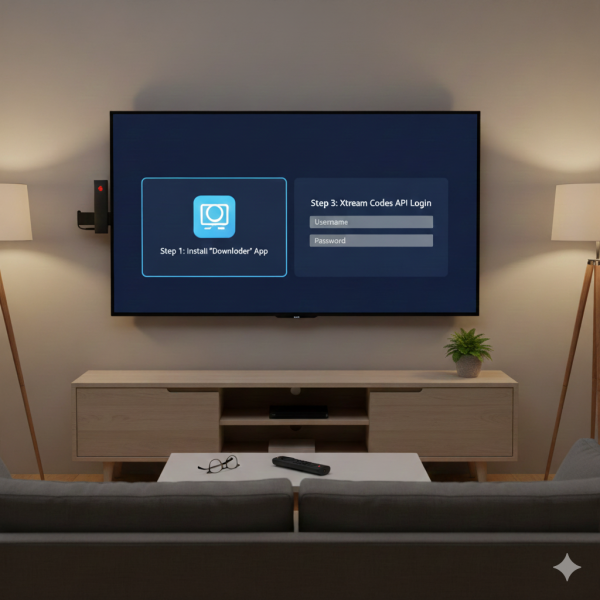
From the Firestick home screen, search for "Downloader" (orange icon by AFTVnews) in the Amazon App Store. Install it for free, open it, and click Allow when prompted for file permissions.
In Downloader, enter: https://www.iptvsmarters.com/smarters.apk or use shortcode 4839527. Click Go, wait for the APK to download, then click Install. Once installed click Done and delete the APK file to free storage space.
For TiviMate, use the URL: https://tivimate.com/app or Downloader code 493837 and follow the same install process.
Step 6 — Login with Xtream Codes API
In 2026, we strongly recommend using the Xtream Codes API over M3U URLs because it is more stable and also tracks EPG (TV Guide) data faster. Here is the exact login process:
Open your IPTV app and select "Login with Xtream Codes API". Do not use the M3U URL option — Xtream Codes is significantly more stable for live sports and 4K streams.
Enter your credentials exactly as sent to you on WhatsApp:
- Any Name: UltraCast (or any label you prefer)
- Username: Your unique username (case sensitive)
- Password: Your unique password (case sensitive)
- Server URL: Provided in your WhatsApp credentials (e.g.
http://server.example.com:8080)
Click Add User and wait for the channels to download. With 31,000+ channels, this initial load takes 30–90 seconds. Once complete, your full channel list, VOD library, and EPG guide will all be available.
Step 7 — Advanced Player Settings for Best 4K Quality
The player app acts as the engine of your stream — and in 2026, advanced player configuration is the difference between a smooth 4K experience and persistent buffering. Apply these settings in both TiviMate and IPTV Smarters Pro:
Enable Hardware Acceleration: Go to Player Settings → enable "Hardware Decoder" or "Hardware Acceleration". This offloads 4K decoding to the Firestick's dedicated GPU rather than the CPU — dramatically reducing buffering and device temperature.
Set Buffer Size: In your app settings, look for "Advanced" or "Player Settings". Change the buffer size to Small (2–5s) if you have fast and stable internet, or Large (10–15s) if your internet is less stable. A larger buffer gives the stream more headroom to handle brief network fluctuations without visible interruption.
Set EPG Days to 2: IPTV apps store EPG data locally. Setting the EPG days to "2" rather than "7" reduces memory consumption on the Firestick's limited 2GB RAM and prevents the app from slowing down over time.
App Caching: Clear the "Cache" in your application settings monthly to prevent memory leaks that accumulate over weeks of use.
Step 8 — Stop ISP Throttling Your 4K Firestick Stream
Even with perfect hardware and app settings, your 4K stream can still buffer if your ISP is throttling your connection. UK ISPs (like BT, Sky, and Virgin) use Deep Packet Inspection to detect high-bandwidth streaming traffic during peak evening hours and artificially slow it down.
The fix for this is a high-quality VPN that encrypts your traffic. It makes your traffic type invisible to your ISP — allowing you to use 100% of the speed you pay for at all times. For the UltraCast IPTV UK subscription, this is already handled automatically. Our built-in VPN protection is active on every stream from the moment you connect — no additional app or subscription required.
- Source Filtering: Usually a lost HDMI connection or insufficient power — not a buffering issue
- Audio Out of Sync: Go to Settings → Display & Sounds → Audio and turn off "Dolby Plus"
- App Crashing: Clear the "Cache" in your application settings and force-restart the app
Read our complete guide on stopping ISP throttling in 2026 for a full diagnostic process and all available solutions.
Troubleshooting 4K IPTV Issues on Firestick 2026
4K Stream Looks Like HD or SD
Your Firestick's display output may not be set to 4K. Go to Settings → Display & Sounds → Display and confirm it is set to 4K Ultra HD. Also ensure your TV HDMI input is set to HDMI 2.0 or higher in your TV's settings — HDMI 1.4 ports cannot pass 4K HDR signals.
Buffering Only During Live Sports (Not VOD)
Live sports at peak times (Saturday afternoons, major PPV events) are the highest-demand scenario for any IPTV server. If your VOD plays perfectly but live sports buffer, this is either ISP throttling or a server load issue. UltraCast's Anti-Freeze Technology 9.1 automatically redistributes load across multiple servers — but ensure your VPN is active for ISP protection. Read more in our ISP throttling guide.
Firestick Gets Very Hot and Restarts
Thermal throttling is caused by using the TV's USB port for power instead of the mains adapter (see Step 1). Switch to the official Amazon power adapter plugged directly into the wall. Also ensure the Firestick is not enclosed in a cabinet or directly behind the TV without airflow.
Channels Load Slowly or Show "Loading" for 30+ Seconds
This indicates your Xtream Codes server URL may have changed. Contact UltraCast support on WhatsApp to confirm your credentials are current. Also try clearing the app cache (Settings → Applications → [App Name] → Clear Cache) and restarting both the app and the Firestick.
No Channels After Login
Verify each credential field contains no extra spaces — even a single space before or after your Username, Password, or Server URL will prevent login from working. Copy-paste credentials directly from your WhatsApp message rather than typing them manually.
Frequently Asked Questions — Firestick IPTV 4K 2026
What is the minimum speed for 4K IPTV?
You need at least 25 Mbps of consistent speed dedicated to one 4K stream. This does not mean your overall broadband speed — it means the dedicated bandwidth available to your Firestick at the moment of streaming. If other devices on your Wi-Fi are consuming bandwidth simultaneously, use a wired Ethernet connection for your Firestick via a USB-C to Ethernet adapter.
Why does my Firestick get hot?
4K decoding is extremely processor-intensive. Ensure your Firestick is powered by the official Amazon wall adapter (not the TV USB port), has adequate ventilation, and that background apps are cleared before streaming. If the device is still overheating, consider positioning it with the HDMI extender so it hangs freely rather than sitting flat against a hot TV surface.
Why do 4K channels show in HD instead?
4K decoding is intensive. Ensure you use the HDMI extender for better airflow, enable Hardware Acceleration in your IPTV app player settings, and confirm your TV's display output is set to 4K Ultra HD in Settings → Display & Sounds.
Can I watch on my TV if I do not have a Firestick?
Yes. You must have a 4K-capable TV and be using the HDMI connection correctly. If your TV is a Samsung or LG Smart TV, you can use SIPTV or SS IPTV apps directly. For the best 4K experience, using a Firestick 4K Max plugged into your TV's HDMI 2.0 or 2.1 port is the recommended setup in 2026. See our complete device setup guide for all options.
Conclusion — Your New 4K Setup Awaits
Optimising your Firestick for 4K IPTV in 2026 is not just about installing an app and pressing play. It is about aligning your hardware, system settings, network connection, and player configuration to work together as a unified, high-performance streaming system. By following the steps above — from using the correct power adapter to enabling hardware acceleration and eliminating ISP throttling — you can unlock a truly cinematic 4K experience on any Amazon Firestick model.
To truly experience the best results, your IPTV provider must match the quality of your setup. UltraCast IPTV UK — with Anti-Freeze Technology 9.1, built-in VPN protection, and dedicated UK server infrastructure — is purpose-built for exactly this setup. Follow the steps above, clear your cache, and enjoy the most stable 4K streaming experience available in the UK in 2026.
For more setup guidance across all devices, visit our complete UltraCast setup guide. Questions at any point? Our 24/7 UK support team is always available on WhatsApp.
🔥 Ready for Flawless 4K Streaming on Your Firestick?
UltraCast IPTV UK — Anti-Freeze Technology 9.1 · Built-in VPN · 31,000+ channels · 4K Ultra HD · Plans from just £12. Free 24-hour trial available.